Website design and WordPress SEO
Why Is My WordPress Site Slow? 12 Fixes That Actually Work
A 30 minute diagnosis routine and 12 fixes in the order that gives the biggest speed gains first.
Read articleRight size, small files, clear names and honest alt text: the image routine I give every writer.
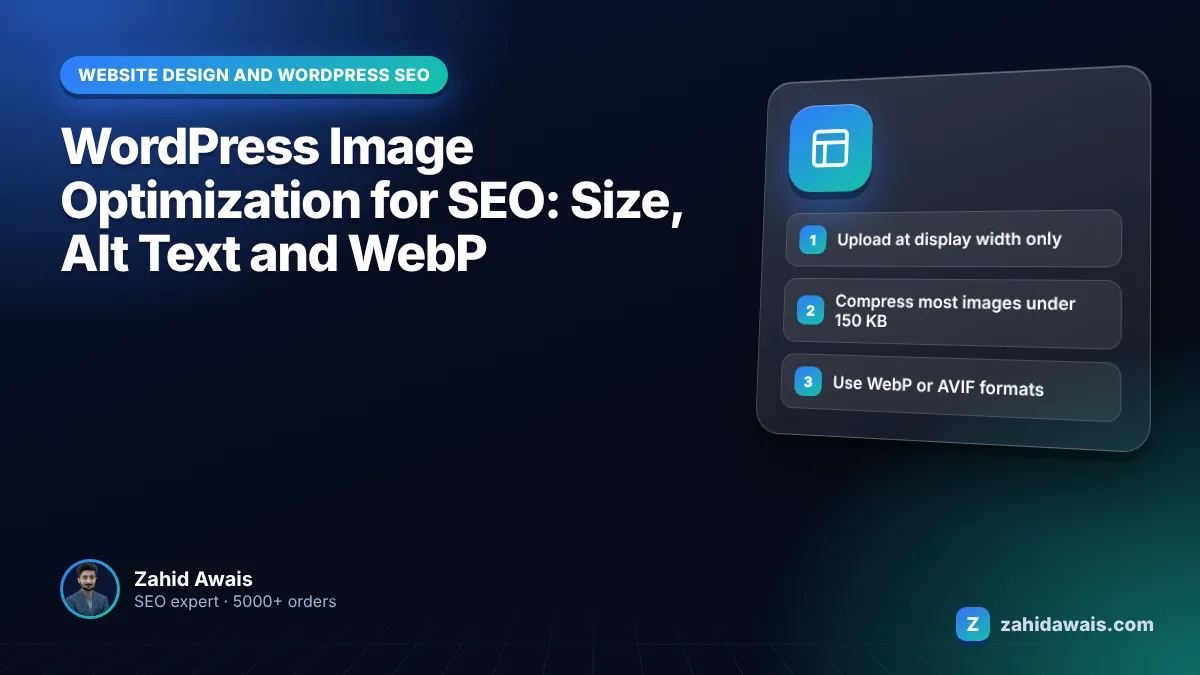
This guide covers WordPress image optimization for SEO from upload to page: the right dimensions, file size targets, file names, alt text, and when to use WebP or AVIF, with a checklist you can apply to every new post.
Good WordPress image optimization for SEO means uploading images at the size they display, compressing them (most under 150 KB), using WebP or AVIF where supported, giving files descriptive names, writing alt text that describes the image, and placing images in normal img elements near related text so Google can understand them.
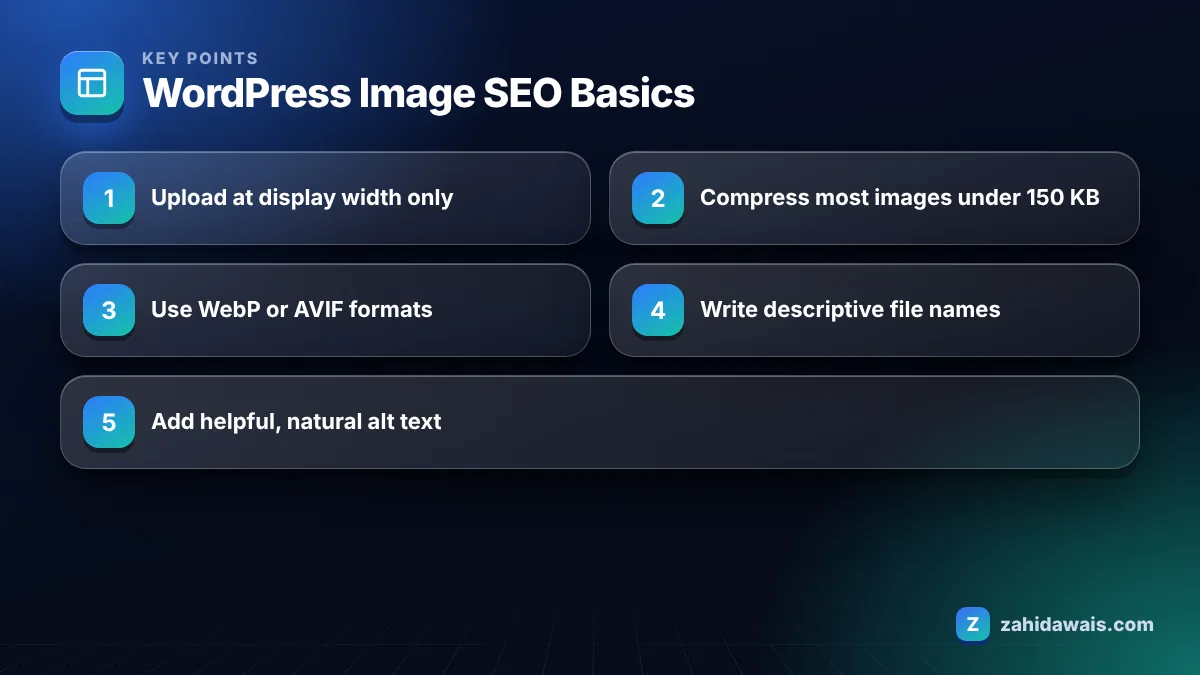
Images for WordPress should be uploaded at roughly the largest width they will actually display, usually 1200 to 2000 pixels for full width banners and 800 to 1200 pixels for images inside a content column. Anything larger wastes bandwidth and slows your pages.
WordPress helps here. When you upload an image it creates several smaller sizes and adds srcset markup so browsers can choose a suitable version for each screen. Since version 5.3 it also scales down very large uploads: any image wider or taller than 2560 pixels is resized by default, and the scaled copy becomes the largest size used.
That safety net is useful, but do not rely on it. A 6000 pixel phone photo still uses server space and processing time, and the 2560 pixel version is often far bigger than your theme needs. Resize before upload.
These are the targets I give clients and writers:
| Image use | Upload width | Target file size | Format |
|---|---|---|---|
| Hero or full width banner | 1600 to 2000 px | Under 200 KB | WebP or AVIF, JPEG fallback |
| Blog featured image | 1200 px | Under 120 KB | WebP |
| Image inside post content | 800 to 1200 px | Under 100 KB | WebP |
| Product photo (zoom enabled) | 1500 to 2000 px | Under 250 KB | WebP |
| Logo and icons | Display size, or vector | Under 20 KB | SVG or PNG |
| Screenshot with text | Actual content width | Under 150 KB | PNG or lossless WebP |
These file size targets are my working limits from practice, not Google rules. A detailed product photo can be larger; a decorative background should be much smaller.
Yes, alt text helps SEO because Google uses it, together with the surrounding content, to understand what an image shows, and it also makes the image accessible to people using screen readers. Google’s image SEO best practices describe alt text as the most important attribute for providing metadata about an image.
The same guide warns against filling alt attributes with keywords. Write alt text that describes the image in the context of the page, in one short sentence.
Leave alt empty (alt=””) for purely decorative images such as dividers, so screen readers skip them. In WordPress, set alt text in the block sidebar or the Media Library. Text added in the Media Library becomes the default when you insert that image into new content.
Use WebP as your default in WordPress because it has broad browser support and usually gives much smaller files than JPEG at similar quality, and use AVIF where your server and plugin support it if you want even smaller files. Both are supported by Google Search.
Google lists BMP, GIF, JPEG, PNG, WebP, SVG and AVIF as supported image formats. WordPress accepts WebP uploads, and since version 6.5 it supports AVIF as long as your server’s image library (Imagick or GD) supports it. You can check this under Tools, Site Health, Info, Media Handling.
The WordPress optimization handbook also recommends choosing the right format and compression for every image, and considering WebP. In practice, most sites use a plugin or their host’s image service to convert uploads automatically and serve a fallback to older browsers.
Image file names and placement matter because Google uses the file name, the alt text and the nearby text to understand an image, and it can only index images that appear in proper img elements. Google states that it does not index CSS background images.
You need an image optimization plugin or a host level image service if you want uploads compressed and converted to WebP or AVIF automatically, because WordPress core resizes images but does not convert every upload to a modern format by itself. If you prepare every image by hand before upload, you can skip the plugin.
When I choose one for a client, I check four things:
Avoid stacking two image plugins or combining a plugin with a host feature that does the same job. Double conversion causes broken images and wasted storage, and it is one of the first things I check when a client says their images suddenly look blurry.
A recipe post has 9 images uploaded straight from a phone at 4032 pixels wide, around 3.5 MB each, so roughly 31 MB of originals. WordPress scales them to 2560 px, but the theme still loads 1.1 MB versions on mobile. After resizing to 1200 px and converting to WebP, each image is about 90 KB, around 810 KB for the whole post. Each file is renamed (for example chicken-karahi-final-dish.webp) and given descriptive alt text. The page weight drops by more than 90 percent, and the main image becomes visible much sooner.
A quick image SEO checklist is: right size, compressed, modern format, descriptive name, helpful alt text, placed near related text, and not lazy loaded above the fold. Writers can run it in two minutes per post.
I hand this list to every content writer I work with, and it is part of my content and media SEO service for sites that depend on image search, such as recipe, fashion and travel sites. If images are only one part of a wider speed problem, my technical SEO service looks at hosting, scripts and caching too.
New sites built through my WordPress website design service ship with automatic WebP conversion and sensible image sizes already configured. To check word counts and keyword use in captions and alt text across a post, try my word counter.
WebP is the best default for most WordPress sites because it gives small files with good quality and wide browser support. AVIF can be smaller still if your server supports it. Google Search supports both, along with JPEG, PNG, GIF, SVG and BMP.
Most themes display featured images at around 1200 pixels wide, so upload at that width unless your theme documentation says otherwise. Compress it to roughly 100 to 150 KB in WebP. Larger uploads waste space and can slow pages on mobile.
Every meaningful image should have alt text that describes what it shows in the context of the page. Purely decorative images, such as dividers or background shapes, should use empty alt text so screen readers skip them.
WordPress creates several resized versions of each upload and applies some compression to generated JPEG sizes, and it scales very large images down to 2560 pixels by default. It does not convert everything to WebP on its own, so many sites add a plugin or host service.
Yes, Google recommends short, descriptive file names because they give a small clue about the image’s subject. Rename files before uploading, using lowercase words separated by hyphens, such as blue-running-shoes.webp, instead of camera names like IMG_1234.jpg.
No. Lazy loading images further down the page helps speed, but the main image at the top should load right away because it is often the Largest Contentful Paint element. Check that your theme or plugin does not lazy load the first visible image.
Facts checked against these official pages. Read how I check facts in my editorial policy.
A 30 minute diagnosis routine and 12 fixes in the order that gives the biggest speed gains first.
Read article
Find every insecure image, script and stylesheet on your HTTPS pages and replace it for good.
Read article
The documented reasons Google changes your title in search results, how to spot which one applies, and how to fix it.
Read articleSend your website and I will reply with a free audit.