Guest Post Guidelines Generator
Builds a write for us guidelines page with topics, link policy, AI rules and contact details.
List each placement with its live URL, add discount, tax and how to pay, then print the invoice or download it as an HTML file.
This is an invoice template. It does not take payments, and nothing you type is stored or sent anywhere.
The free guest post invoice generator turns a list of placements, each with its live URL, into a clean invoice with subtotal, discount, tax and payment details. Print it, save it as a PDF from the print dialog or download it as an HTML file. It runs in your browser.
A guest post invoice is a bill for published placements that lists each article with its live URL, quantity and price, then the subtotal, any discount or tax, the total due and how to pay. Send it after the posts are live so the buyer can check every link before paying.
A guest post invoice is the bill a writer, blogger or link building provider sends after placing articles on other sites. Its job is the same as any invoice: say who is billing whom, for what, how much and how to pay. What makes it different is the live URL on each line, so the buyer can open every placement and confirm it is published before paying.
The UK government's guide to what an invoice must include lists "a unique identification number", "a clear description of what you're charging for", "the date of the invoice" and "the total amount owed", among other items. This tool covers those basics. It is a template, not accounting software: it does not take payments, track who paid or store anything.
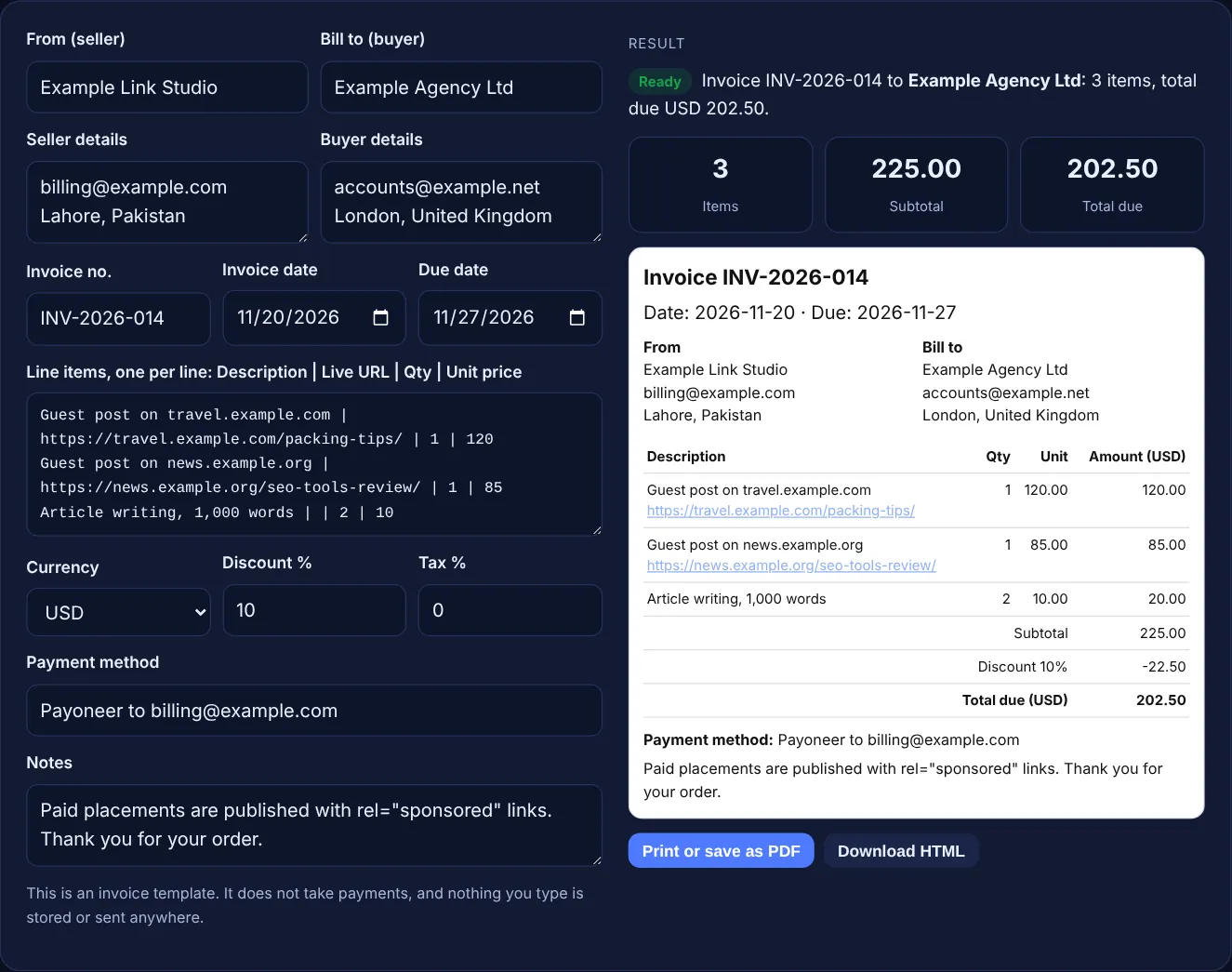
It should include a unique invoice number, the date, your details and the buyer's, one line per placement with the live URL, quantity and price, then the subtotal, any discount and tax, the total due and how to pay. Those are the same basics the UK government lists for any invoice, plus the live URL, which turns the invoice into a delivery report. If you or the buyer are registered for VAT, check the extra rules: GOV.UK says "You must use VAT invoices if you and your customer are VAT registered."
It is a good place to state it when the placements are paid. Google's page on qualifying outbound links says to "mark links that are advertisements or paid placements (commonly called paid links) with the sponsored value", and adds that nofollow "is still an acceptable way to flag them, though sponsored is preferred". The default note in this tool says paid placements carry rel="sponsored". Edit it to match what you agreed with the client, and never describe a paid link as safe or guaranteed.
Click Print or save as PDF. The tool calls the browser's print command, which MDN describes as opening "the print dialog to print the current document". A print style hides everything on the page except the invoice. In the dialog, choose your printer, or choose Save as PDF as the destination to get a PDF file. Download HTML saves a standalone file you can open, edit or attach to an email.
| Invoice part | What to write | Tip |
|---|---|---|
| Invoice number | A unique number such as INV-2026-014 | Never reuse a number |
| Dates | Invoice date and due date | Due date after the invoice date |
| Line item | Guest post on site name, plus the live URL | Bill only for posts that are live |
| Qty and unit price | Number of posts and price per post | Writing fees on their own line |
| Discount and tax | Percentages, tax after discount | Check local tax rules yourself |
| Payment method | Payoneer, bank transfer or a wallet note | Never paste passwords or private keys |
Example: Example Link Studio bills Example Agency Ltd for two guest posts, one on travel.example.com at 120 and one on news.example.org at 85, plus 2 articles written at 10 each. With the default inputs the tool shows 3 items and a subtotal of USD 225.00. The 10% discount takes off USD 22.50, tax is 0%, so the total due is USD 202.50. In the edge case of one sponsored post at GBP 99.99 with 20% tax and no discount, the tax line is GBP 20.00 and the total is GBP 119.99, because tax is rounded to the nearest penny.
Send it once the posts are live, so every line can carry a working URL the buyer can check. If you ask for payment upfront, send a quote or a proforma first and the final invoice with URLs after publication.
Yes. Type them in the payment method field, for example a Payoneer email or a wallet address with the network name. Never paste passwords, private keys or seed phrases. The tool only prints the text you enter.
After. The tool takes the discount off the subtotal first, then applies the tax percentage to what remains, and rounds each amount to two decimal places. Check your own country's tax rules before you charge tax.
No. Everything runs in your browser and nothing is saved or sent anywhere. Download the HTML file or save a PDF from the print dialog for your records, because closing the page clears the form.
No. It is a template that shows how to pay, not a payment service. The buyer pays through the method you write in the payment field, and you mark it as paid in your own records.
Use a simple sequence that never repeats, such as INV-2026-001, INV-2026-002 and so on. A unique number lets you and the buyer match each payment to the right invoice later.
Checked 23 Oct 2026. Facts checked against these official pages. Read how I check facts in my editorial policy.
Builds a write for us guidelines page with topics, link policy, AI rules and contact details.
A backlink price calculator is an estimating tool. This one sets a base price from monthly organic traffic…
A link building cost calculator is a budgeting tool. Monthly cost = links per month x (outreach or placement…
Builds link HTML with rel sponsored, ugc or nofollow, new tab options and a disclosure line.
Send your website and I will check it for you, free.