
Local SEO
Negative Google Review Response Templates You Can Copy and Adapt
Seven ready-to-adapt replies for common complaints, with the structure that keeps every response short, calm and useful.
Read article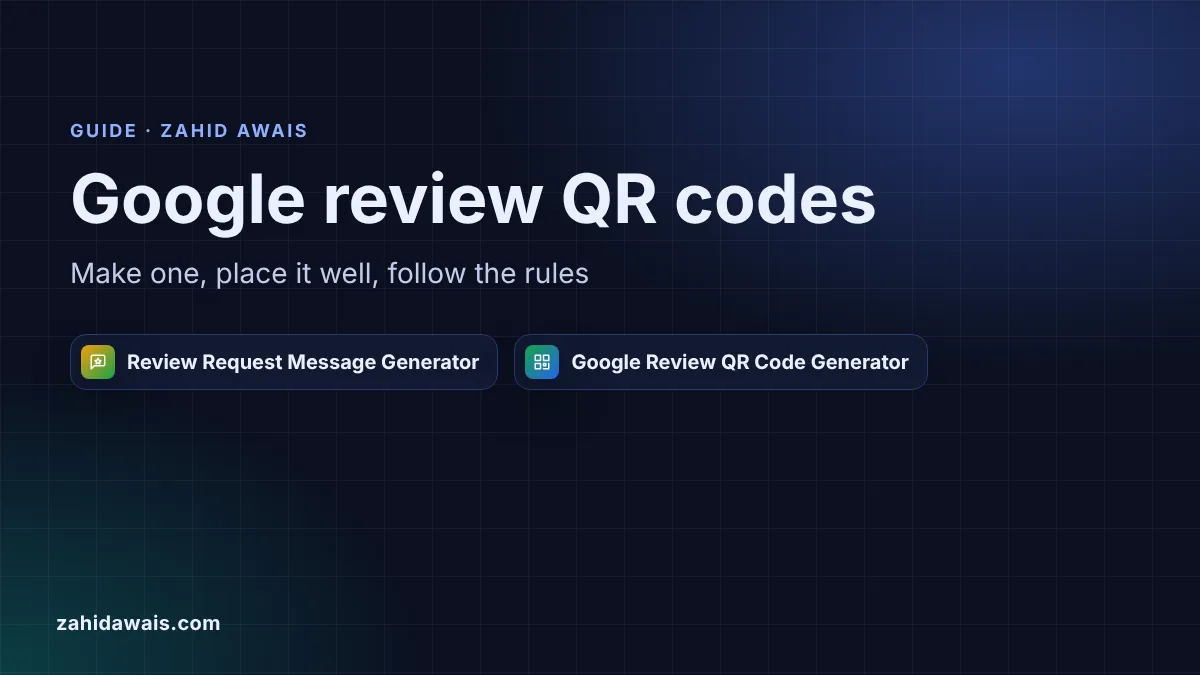
This guide is for owners and marketers of local businesses, such as clinics, salons, restaurants, shops and trades, who want more customers to leave a Google review. You will learn how to make a Google review QR code, where to put it, what to say next to it, and which of Google’s rules decide whether those reviews stay up.
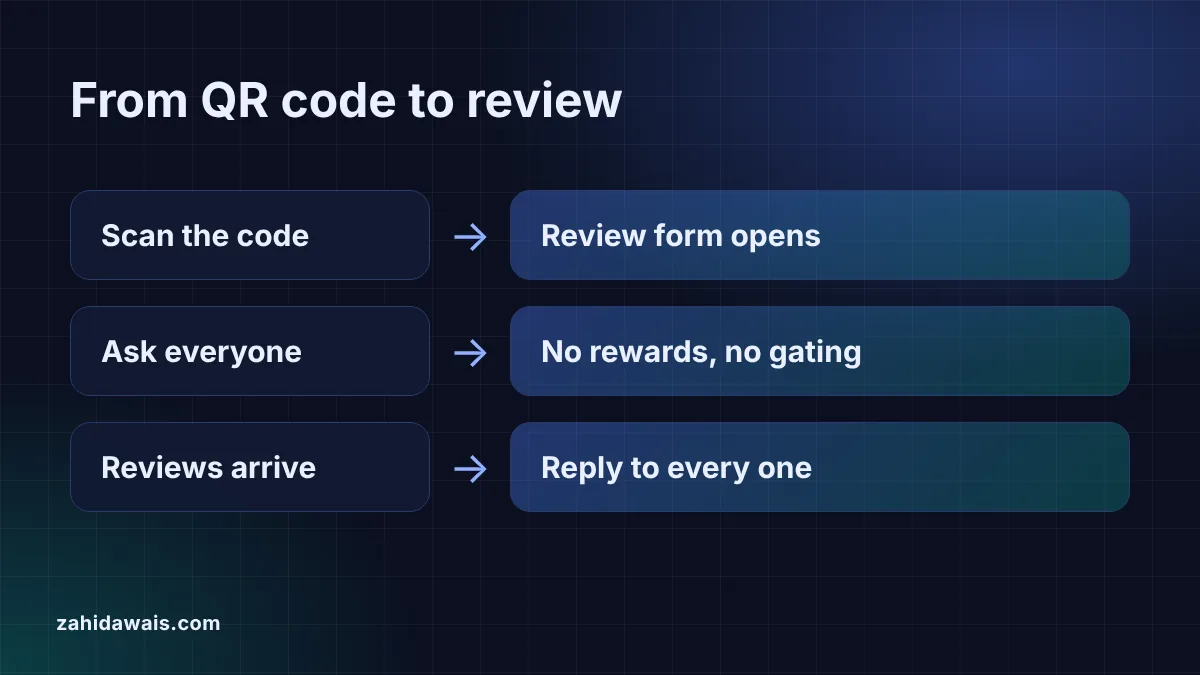
A Google review QR code is a printed or on screen code that opens your Business Profile review form when a customer scans it. Get the link from Business Profile under Read reviews, then Get more reviews, turn it into a QR code, and place it where customers pay or wait. Ask everyone, and never offer a reward.
A Google review QR code is a QR code that stores the direct link to your Google review form. The customer points a phone camera at it, taps the link and lands on the form with your business already selected, without searching for you on Google Maps.
Google offers this itself. Its help page on how to create a Google link or QR code to request reviews walks through the steps in your Business Profile and notes one limit: “Currently, reviews QR codes can only be generated on a computer browser, not on mobile devices.” A browser based generator fills that gap and adds options Google does not, such as an SVG file for print and a caption under the code.
You make one in two steps: copy your review link from your Business Profile, then turn that link into a QR code. In detail:
The Place ID route needs a warning. Google defines a Place ID as “a textual identifier that uniquely identifies a place”, and many tools build a review link from it with the pattern search.google.com/local/writereview?placeid=. I could not find that pattern in Google’s documentation, so treat it as a fallback. Google also says “Place IDs may change over time”, and a place can get a new ID if the business moves.
Put the code where customers have a free moment right after the experience: at the till, on the receipt, in the thank you email and on the table or waiting room wall. Google’s help page lists the same idea in its own words: “Include it on your receipts” and “Include it in thank you emails”, along with the end of a chat and a printed code in your store.
| Placement | Best file | Tip |
|---|---|---|
| Counter or till sign | SVG, printed at A5 or larger | Caption such as “Tell us how we did on Google” |
| Printed receipt | PNG or SVG from your receipt software | Keep the quiet margin around the code |
| Thank you email | PNG plus the clickable link | Most people read email on the phone, so the link matters more |
| Table card or waiting room | SVG at error correction Q or H | Higher levels survive scratches and folds better |
| Business card or invoice | SVG | Use the shortest review link so the code stays simple |
One code per business location is enough. If you run several branches, make one code per branch from that branch’s own link, so reviews land on the right profile.
Google allows you to ask for reviews, but not to pay for them, filter who gets asked or pressure staff to collect a quota. The prohibited and restricted content policy for Maps lists, among other things:
So a sign that says “Loved your visit? Leave us 5 stars” or “Review us and get a free coffee” breaks the rules, while “Tell us how we did on Google” does not. Google takes this seriously: its post on protecting businesses on Maps says its systems and analysts “blocked or removed over 292 million policy-violating reviews” in 2025.
Use the QR code for people in front of you and a message for people who have already left. Google’s help page adds: “Tip: You can also send review requests through email, WhatsApp message, or Facebook post.” The review request message generator writes the email, SMS and WhatsApp version with the customer’s name and your link, counts SMS parts and flags reward or gating words before you send.
Keep the SMS within one 160 character part, send it the same day or the next day, and send one reminder at most. The same honest wording should appear on the sign and in the messages, so every customer gets the same request.
Scan it with at least two phones, an iPhone and an Android if you can, and confirm the review form opens for the right business. Customers need a Google account: Google’s tips to get more reviews say “Customers must be signed into a Google Account to leave a review.”
Reply to them, good and bad, within a few days. Google’s tips say “Your replies are public and help you build good relationships with customers.” The review response generator drafts replies, and my negative review response templates cover complaints. If you see reviews that break Google’s rules, follow the steps to report fake Google reviews rather than replying angrily.
Example: Example Dental Care, a made-up clinic, has the made-up review link https://g.page/r/CExample123/review. In the QR code generator at error correction M, the 35 character link becomes a version 3 code of 29 by 29 modules, and the PNG and SVG both decode back to the same link. For a laminated counter sign the clinic picks level H, which gives a version 5 code of 37 by 37 modules. For patients who have already left, the message generator writes the friendly SMS “Hi Sarah, thanks for choosing Example Dental Care! Could you leave us an honest Google review? https://g.page/r/CExample123/review Thank you, Ali”, which is 145 GSM characters, 1 SMS part, with 0 policy flags.
Yes. In your Business Profile, select Read reviews, then Get more reviews, and you can copy the link or download a QR code. Google says the QR code can only be generated on a computer browser, not on mobile devices.
No. A static QR code stores the link itself and keeps working while the link works. If your business moves or your Place ID changes, the old link may stop working, so test printed codes from time to time.
No. Google’s policy prohibits reviews posted because of an incentive from the business, such as payment, discounts or free goods and services. Offer the discount to everyone if you like, but never link it to leaving a review.
No. Google’s policy forbids selectively soliciting positive reviews and discouraging negative ones. Put the code where every customer sees it and ask everyone the same way, then reply to any critical reviews politely.
Yes, staff can mention the code. Google’s policy does prohibit merchants requesting that staff solicit a certain number of reviews, so do not give staff review quotas or targets. Staff should not review the business themselves either.
The customer may not be signed into a Google account, the link may be incomplete, or a Place ID may have changed. Scan the code yourself, open the link on a computer, and replace it with the link from your Business Profile.
This guide is part of my Google reviews strategy guide.
Checked 23 Oct 2026. Facts checked against these official pages. Read how I check facts in my editorial policy.
Want more reviews and stronger local rankings? See my local SEO service.
Seven ready-to-adapt replies for common complaints, with the structure that keeps every response short, calm and useful.
Read article
Flag the review under the right policy, track it in Google's tool, and save your one appeal for when you have evidence.
Read article
Consistent name, address and phone details help Google and customers trust the right information. Here is how to audit yours.
Read articleSend your website and I will reply with a free audit.