Open Graph Preview
An open graph preview is a mockup of the link card social platforms build from your Open Graph meta tags. The…
Preview your article card in a phone feed and check images against Google recommendations.
Approximate preview with a generic look. Discover does not have a fixed headline limit; this mockup wraps the headline to 3 lines. Being eligible does not guarantee your page will appear in Discover.
The free google discover preview runs in your browser, needs no sign-up and never sends what you type anywhere.
This Google Discover preview shows an approximate article card with your headline, site name and image, and checks the image against Google recommendations: at least 1200 px wide, more than 300,000 pixels, a 16:9 ratio and max-image-preview:large enabled. Without large previews Discover can only show a small thumbnail.
A Google Discover preview is a mockup of how an article may look as a card in the Discover feed on phones. The tool places your image at 16:9 above the headline, wraps the headline to three lines and checks width, total pixels and ratio against Google Discover guidance.
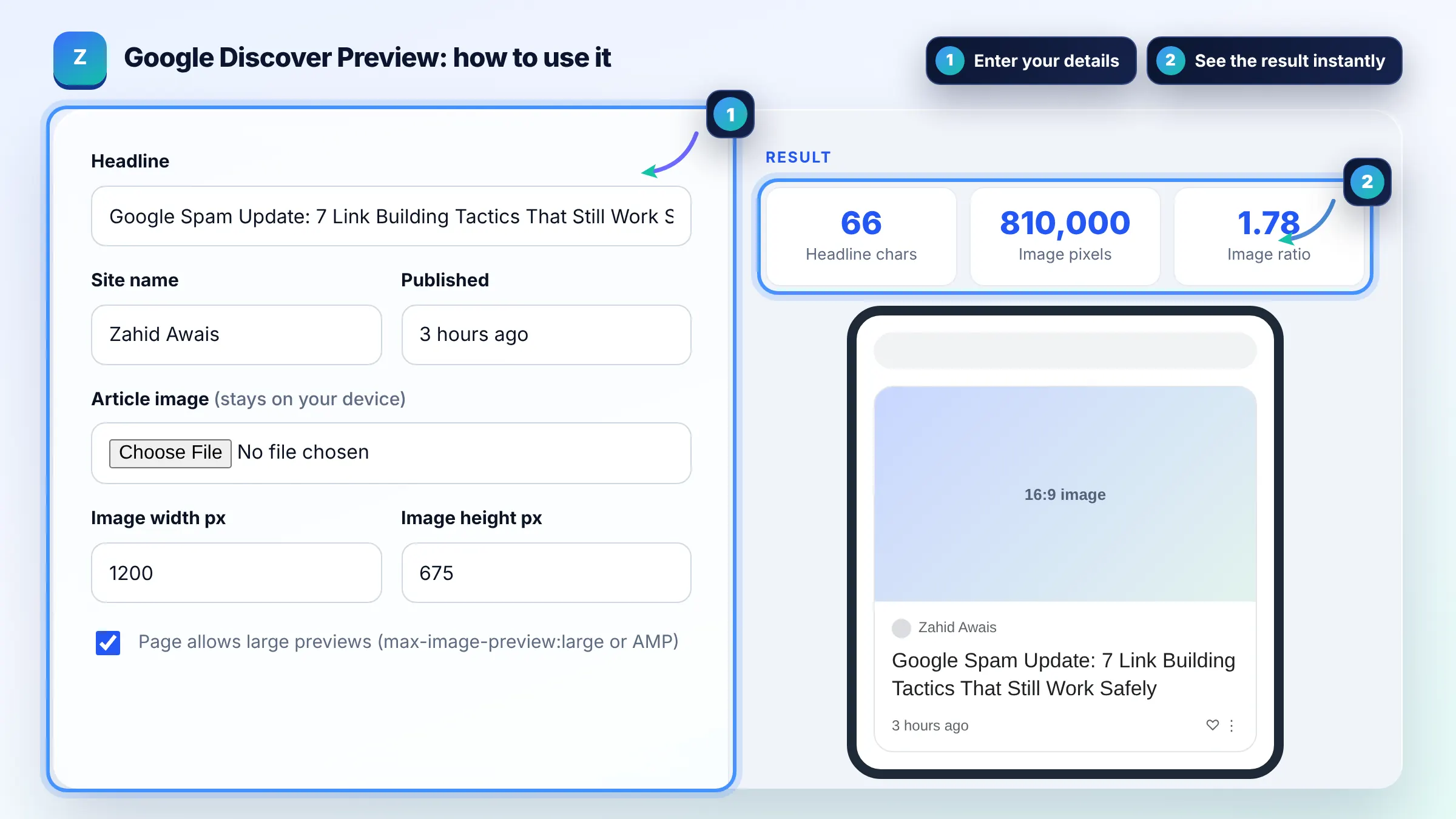
Google recommends large, high quality images at least 1200 px wide, with more than 300,000 total pixels and a 16:9 aspect ratio. Large images also require the max-image-preview:large setting or AMP. See Google Discover guidance for the full list.
It tells Google that a larger image preview, up to the width of the viewport, may be shown for your page. Add it with a robots meta tag such as meta name="robots" content="max-image-preview:large". Without it, Discover may show only a small thumbnail, which usually gets fewer clicks.
No. Google does not publish a headline length for Discover, but it asks for titles that capture the essence of the content without being misleading or exaggerated. In feeds, headlines often wrap to about three lines, so keep the main point in the first 60 to 70 characters.
| Check | Google recommendation | Default example |
|---|---|---|
| Image width | At least 1200 px | 1200 px (pass) |
| Total pixels | More than 300,000 | 810,000 (pass) |
| Aspect ratio | 16:9 | 1.78:1 (pass) |
| Large previews | max-image-preview:large or AMP | Enabled |
| Headline | Captures the content, no clickbait | Clear, specific |
Example: a 1200 x 675 px image has 810,000 pixels and a 1.78:1 ratio, so it passes all three image checks. A 1000 x 1000 px square image has 1,000,000 pixels but fails the width check and the 16:9 ratio, so Discover may crop it badly. The 66 character headline wraps to two lines in the mockup without being cut.
No. It is an approximate preview with a generic look. Discover cards vary by device, app version and country, and Google changes the layout. Use the mockup to check image crop and headline length, not exact pixels.
No. There is no submission process. Content is shown automatically if it is indexed and meets Google content policies. Following the image and title recommendations helps your pages look good when they do appear.
Google picks an image from the page, often the one in your og:image tag or structured data. Make sure that image is large, relevant to the story and not just your site logo, which Google advises against.
Usually because the page does not allow large previews, the image is too small, or the image is not crawlable. Add max-image-preview:large to your robots meta tag and use a 1200 px wide, 16:9 image.
No. The image is read in your browser only to draw the preview and to read its width and height. Nothing is sent to a server, and the tool works without an internet connection after the page loads.
They need to be clear more than short. Google warns against misleading, exaggerated or withheld information in titles. A specific headline of about 60 to 70 characters usually fits three lines and tells readers exactly what they will get.
Facts checked against these official pages. Read how I check facts in my editorial policy.
An open graph preview is a mockup of the link card social platforms build from your Open Graph meta tags. The…
An article schema generator is a tool that writes schema.org Article structured data in JSON-LD. It collects…
A Google mobile SERP preview is a mockup of how a page may appear in Google Search on a phone. This tool…
Send your website and I will check it for you, free.
One short email when something new goes live: articles, free SEO tools, package updates, discounts and price alerts. No spam, unsubscribe in one click.