This guide gives you nine practical fixes for the sitemap couldn’t fetch status in Google Search Console, in the order I check them on client sites, plus how to confirm Google has read the file. It also covers the closely related “Sitemap could not be read” message, which appears on the same report.
Quick answer
Sitemap couldn’t fetch means Google could not retrieve your sitemap file. Google lists causes such as a robots.txt block, a wrong URL returning 404, a temporary server problem, an unresolved manual action or low crawl demand. Test the sitemap URL with URL Inspection, fix the cause, then resubmit it.
Fix Sitemap Couldn't Fetch
Why does Google Search Console say couldn’t fetch sitemap?
Search Console says couldn’t fetch when Google tried to download your sitemap and failed, so it has not processed any URLs from it. The Sitemaps report help page describes three statuses: Success, Has errors, and Couldn’t fetch, where the last means the sitemap could not be fetched for some reason.
Google’s help lists these possible causes: the sitemap is blocked by robots.txt, the site has an unresolved manual action, the URL is wrong and returns a 404, there is a temporary server problem, or crawl demand for the site is low. In my experience the first and third causes, plus firewalls blocking Google, explain most cases.
On brand new sites, I also often see Couldn’t fetch shortly after submission while Google has little reason to crawl the property yet. That matches the low crawl demand cause, and it usually resolves once the file is technically fine and the site gets some links and content.
Before you change anything, write down the exact sitemap URL shown in the report and the date of the last read. Those two details tell you whether you are dealing with a wrong address, an old failure that never retried, or a block that is still active today.
How do I fix sitemap could not be read?
“Sitemap could not be read” is the message shown on the sitemap’s details page when the fetch failed, so you fix it the same way as Couldn’t fetch: find why Google cannot download the file, fix it and resubmit. Expand the error on the details page for any extra information Google gives.
If the file was fetched but has problems inside it, the status is Has errors instead. That points to the XML itself, such as parsing errors, URLs not allowed for that location, or invalid tags. This table separates the two:
Status or error
What it means
Where to look
Couldn’t fetch
Google could not download the file
URL, status code, robots.txt, firewall, server
Sitemap could not be read
Details page message for a failed fetch
Same as Couldn’t fetch
Has errors
File fetched, but some content is invalid
XML syntax, URLs, tags
URL not allowed
URLs are on another domain or above the sitemap’s folder
Sitemap location and URL hosts
Parsing error
Google could not parse the XML
Unescaped characters such as a raw ampersand
Temporary error
Short lived problem on Google’s side or yours
Resubmit only if it persists for several hours
What are the 9 fixes for sitemap couldn’t fetch?
The nine fixes below cover every cause Google lists plus the server and plugin problems I meet most often. Work through them in order and test after each one, because the first few solve most cases.
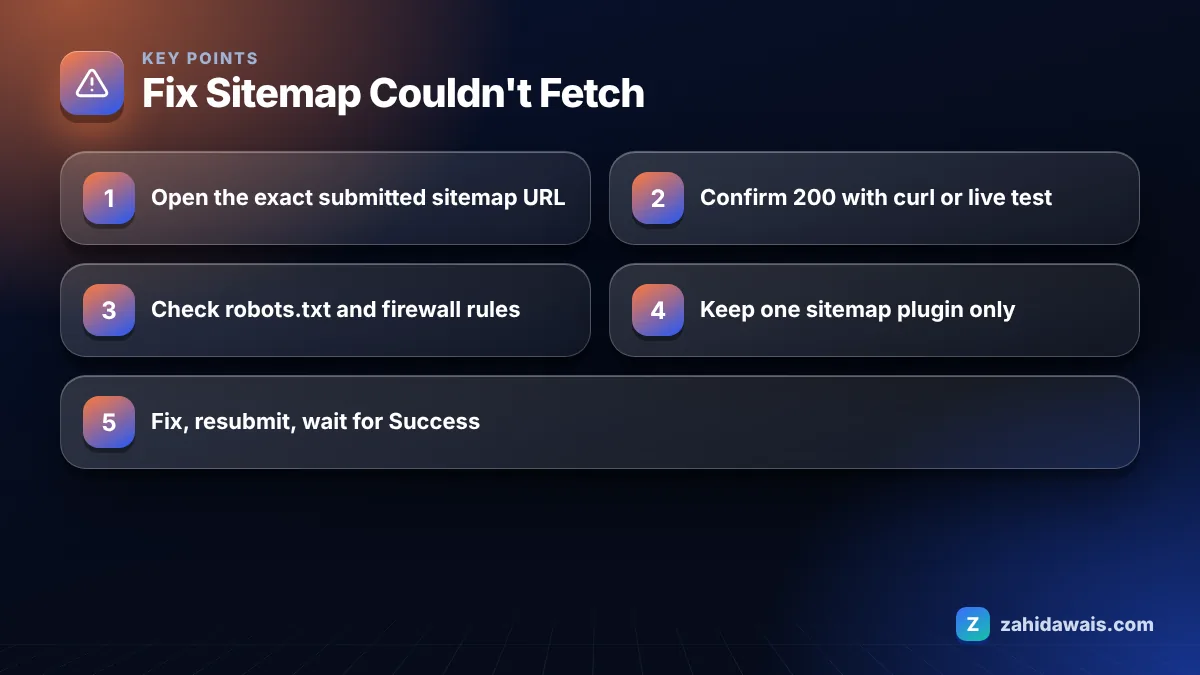
Open the exact URL you submitted. Copy it from the Sitemaps report into a private browser window. A typo, http instead of https, or www mismatch is the most common cause. On WordPress the usual paths are /wp-sitemap.xml for the core sitemap, and /sitemap_index.xml for Yoast or Rank Math.
Check the status code. Run curl -I on the URL. You want 200. A 404, 403, 5xx or a redirect chain all block the fetch.
Test it with URL Inspection. Paste the sitemap URL, run Test live URL and check that “Crawl allowed?” is Yes and “Page fetch” is Successful, which is the check Google recommends.
Check robots.txt. Make sure no Disallow rule matches the sitemap path. My robots.txt tester shows the matching rule in seconds.
Check firewalls and CDN rules. Security plugins and bot protection sometimes block XML files or Google’s IPs. Look for blocked requests to the sitemap URL and exempt verified Google crawlers.
Fix plugin conflicts. Two sitemap generators, such as WordPress core plus an SEO plugin, can conflict. Keep one, then save permalinks in Settings to refresh rewrite rules.
Check size and format. Google’s guide to building a sitemap limits one file to 50MB uncompressed or 50,000 URLs, requires UTF-8 encoding and absolute URLs. Split large files with a sitemap index.
Check for a manual action. Open Security and Manual actions in Search Console. Google lists an unresolved manual action as a possible cause.
Resubmit and add a robots.txt line. Delete the old entry if the URL was wrong, submit the correct one, and add Sitemap: https://www.example.com/sitemap_index.xml to robots.txt as a second discovery route.
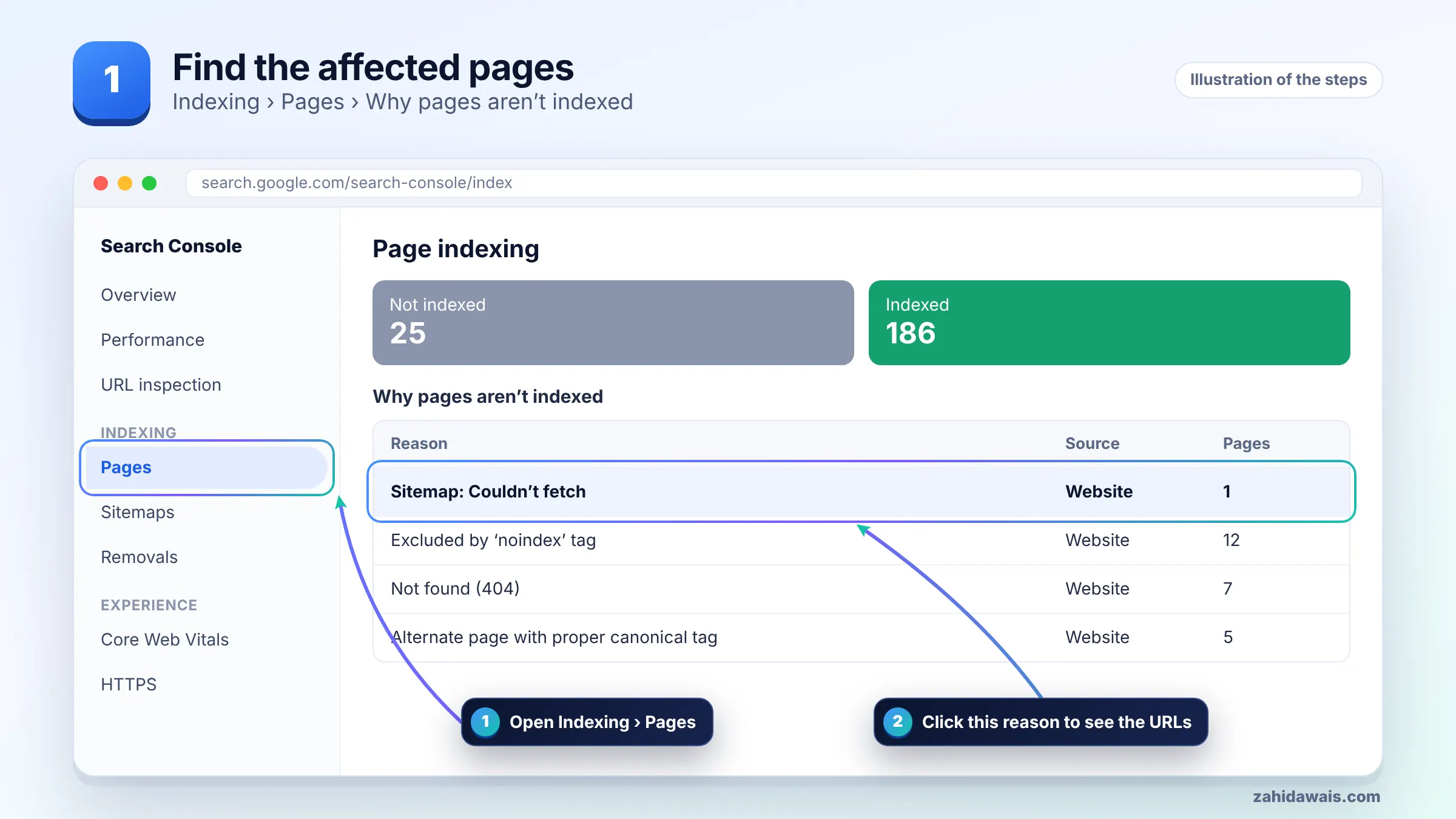
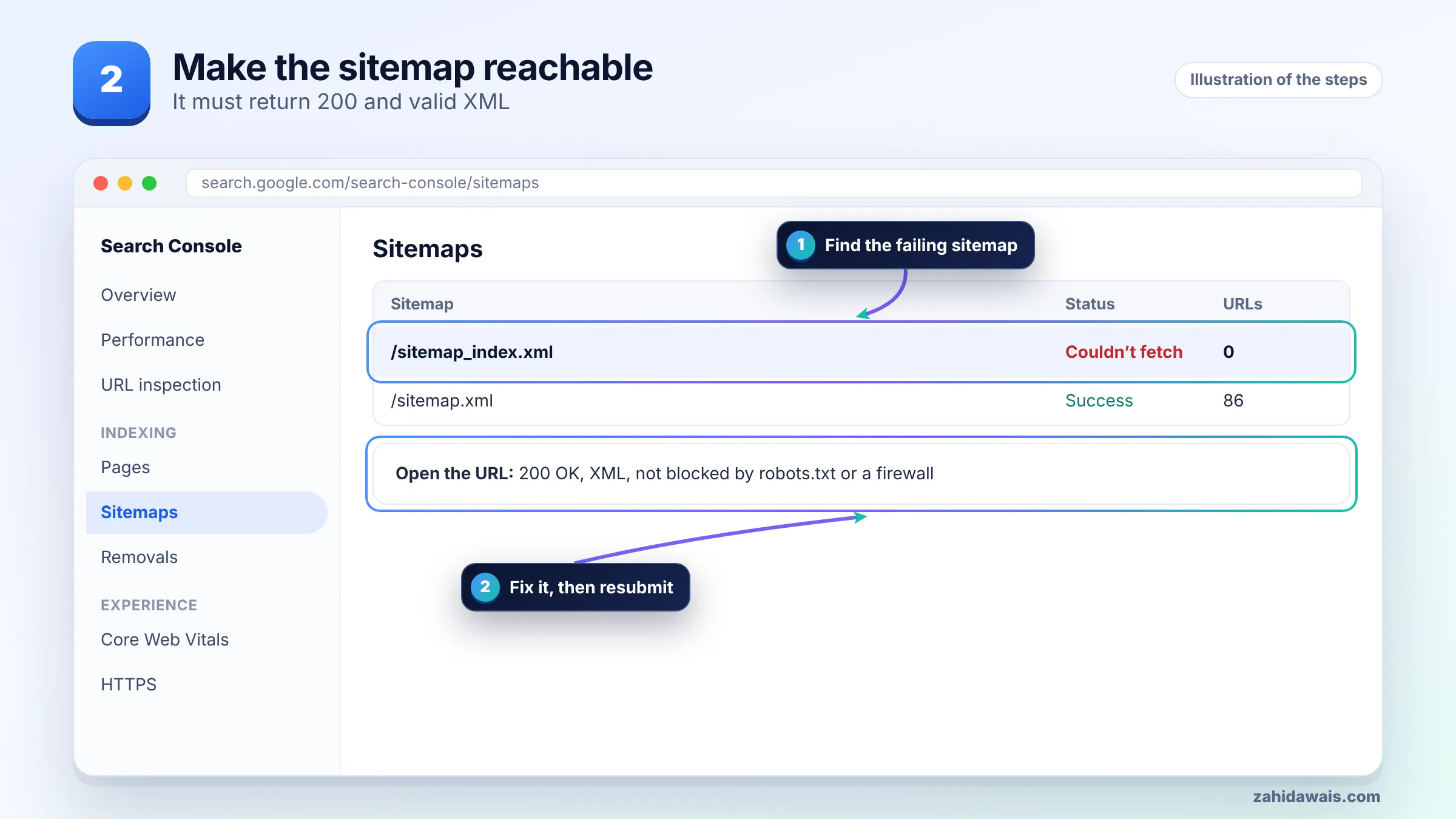
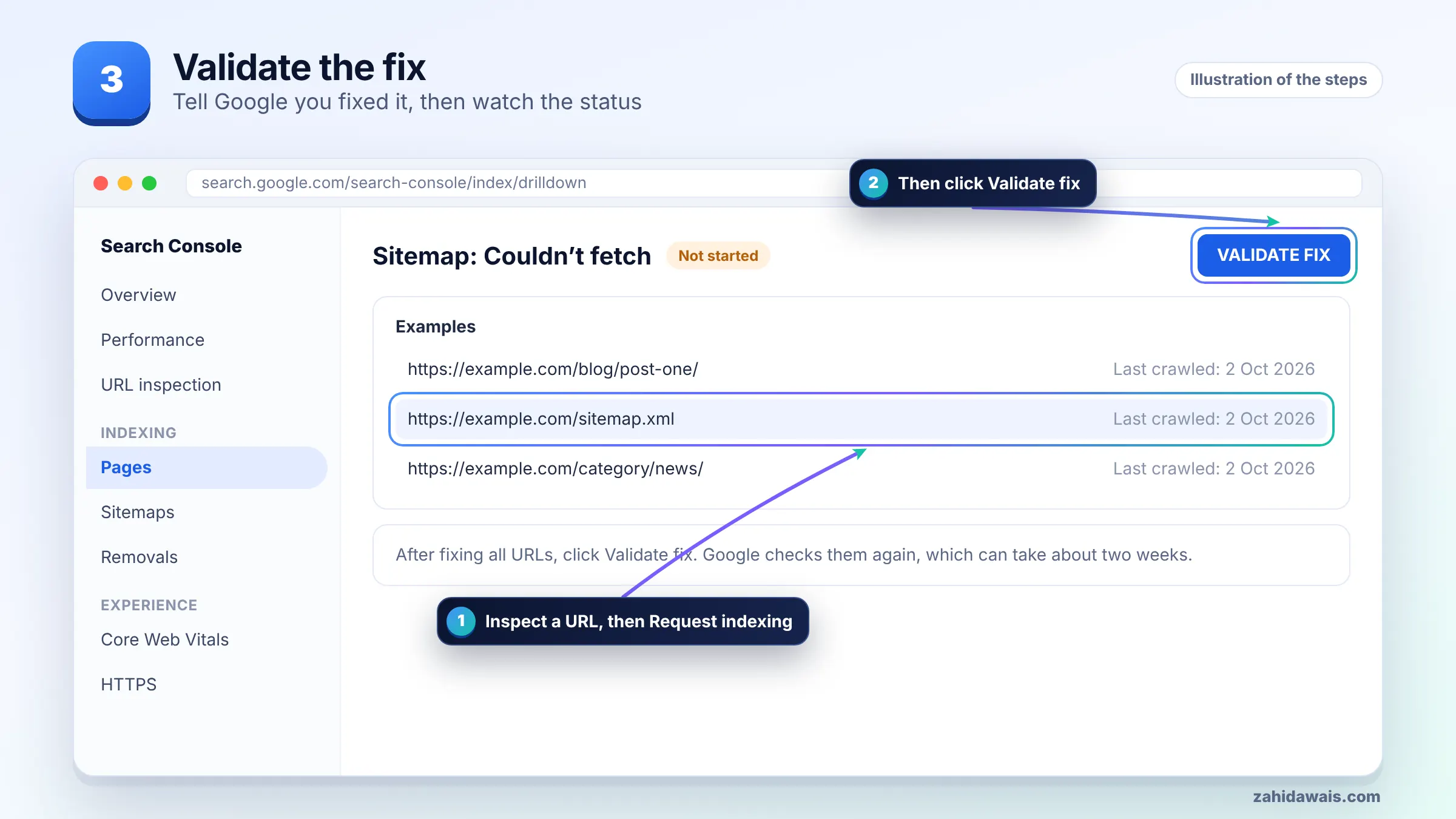
Step 1: find the affected pages in Search Console (illustration)Step 2: apply the fix (illustration)Step 3: request indexing and validate the fix (illustration)
A sitemap that loads in your browser is not proof that Google can fetch it. Caching plugins can serve you a saved copy while the origin returns an error, so always test with curl or the live test.
How do I validate the fix in Search Console?
For sitemaps there is no Validate fix button; you confirm the fix by resubmitting the sitemap and checking that its status changes to Success with a count of discovered pages. Google’s help says that when a fetch failed, you should fix the problem and resubmit, because Google only retries for a few days.
Run Test live URL on the sitemap URL and confirm a successful page fetch.
In Sitemaps, submit the sitemap URL again.
Check the report over the next days. The status should change to Success and show discovered pages.
Open the sitemap’s details and confirm the discovered URL count is close to what you expect.
If URLs inside the sitemap are not indexed later, that is a separate Page indexing question. The Search Console errors guide explains each reason.
How long does it take Google to read a sitemap?
Google tries to crawl a sitemap as soon as you submit it, according to its help, but there is no guaranteed time, and on low priority sites a failed fetch can persist for days before Google tries again. After a successful read, Google recrawls the sitemap periodically on its own schedule.
Remember that submitting a sitemap is a hint. Google’s documentation says it does not guarantee that Google will download the sitemap or use it to crawl the URLs. Strong internal links still matter more than the sitemap for getting important pages discovered.
What does a sitemap fetch fix look like?
Example
A typical WordPress case, for illustration: the owner submitted /sitemap.xml after installing Rank Math. In a browser that URL redirects to /sitemap_index.xml, which looks fine. But curl shows the index returns 403 to requests from outside the owner’s country, because a security plugin had geo blocking enabled. Search Console shows Couldn’t fetch for 9 days.
The fix: exempt verified crawlers from the geo rule, remove the old /sitemap.xml entry, submit /sitemap_index.xml directly, and add a Sitemap line to robots.txt. The live test shows a successful fetch, and the status changes to Success after Google’s next attempt.
If sitemaps, robots.txt and security plugins keep fighting each other on your site, my technical SEO service sorts out the full crawl setup in one pass.
It means Google could not retrieve your sitemap file, so no URLs from it have been processed. Google’s help lists causes including a robots.txt block, a wrong URL returning 404, a temporary server problem, an unresolved manual action and low crawl demand.
Is couldn’t fetch the same as sitemap could not be read?
They describe the same situation. Couldn’t fetch is the status in the Sitemaps report, and Sitemap could not be read is the message on the details page when the fetch failed. Both are fixed by making the file downloadable for Google.
Should I keep resubmitting my sitemap?
Resubmit once after you fix the problem, because Google only retries a failed fetch for a few days. Repeated submissions without a fix do not help. If nothing changed in your sitemap, Google will recrawl it on its regular schedule.
Why does my sitemap work in the browser but not in Search Console?
Your browser may receive a cached copy or be allowed through rules that block Google, such as geo blocking, bot protection or firewall rules. Test the URL with curl and Search Console’s live test to see what Google actually receives.
What is the maximum sitemap size Google accepts?
Google limits a single sitemap to 50MB uncompressed or 50,000 URLs. Larger sites should split URLs into several sitemaps and list them in a sitemap index file, which can reference up to 50,000 sitemaps.
Do I need a sitemap for Google to index my site?
Not strictly. Google can find pages through links, and a sitemap is only a hint. But a sitemap helps Google discover new and deep pages, so it is worth keeping one that lists your canonical, indexable URLs.
Sources
Facts checked against these official pages. Read how I check facts in my editorial policy.
Not every 404 in Search Console is a problem. Some pages should be gone. Here is how to tell which 404s need a redirect, which need a fix, and which you can safely ignore.
A 5xx error means your server failed when Googlebot asked for a page. If it keeps happening, Google slows crawling and can drop the pages. Here is how to find the cause and fix it.