
Google Search Console errors
Indexed Though Blocked by robots.txt: What It Means and How to Fix It
Why Google can index a URL it is not allowed to crawl, and the two clean ways to resolve the warning depending on your goal.
Read articleWhat it means when Google indexes a URL but cannot read the page, how to see what Googlebot received, and how to fix it.
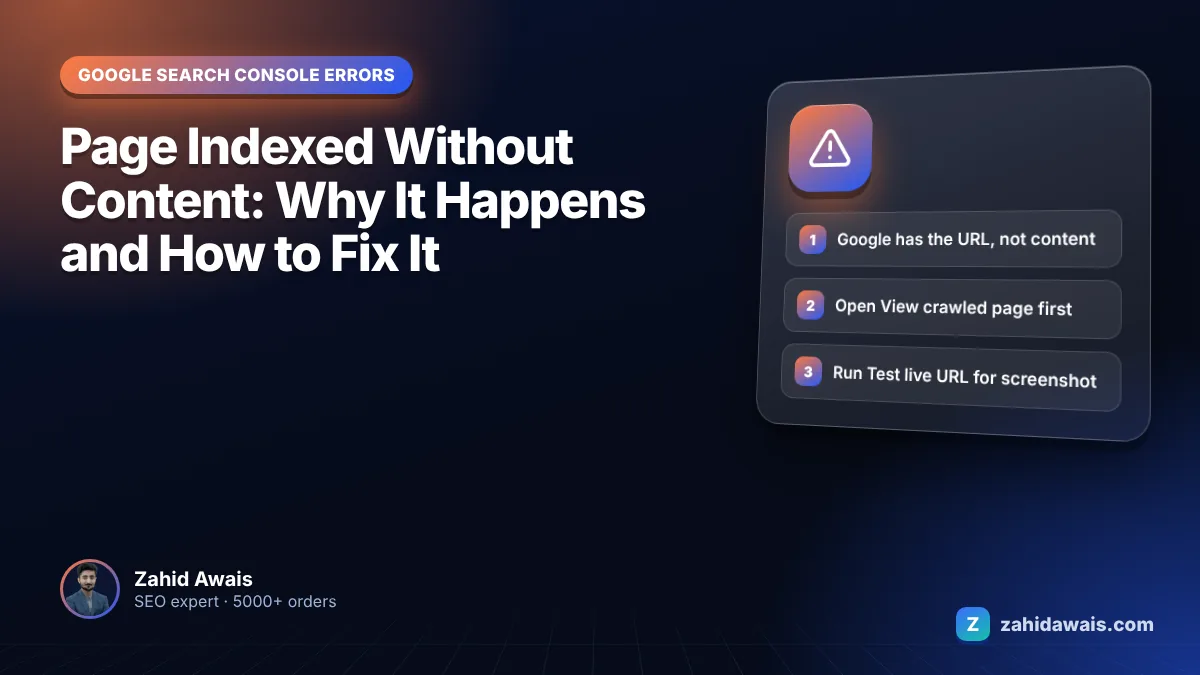
This guide explains what page indexed without content means in Google Search Console, how to see exactly what Googlebot received, and the step by step fix for the causes I find most often. It is a rare warning, but when it appears on important pages it deserves fast attention, because Google has the URL and nothing useful to show for it.
Page indexed without content means the URL is in Google’s index, but Google could not read its content, and robots.txt is not the reason. Usually the server, CDN or firewall sent Googlebot an empty or different response, or the content needs rendering Google could not complete. Inspect the crawled page to find out.
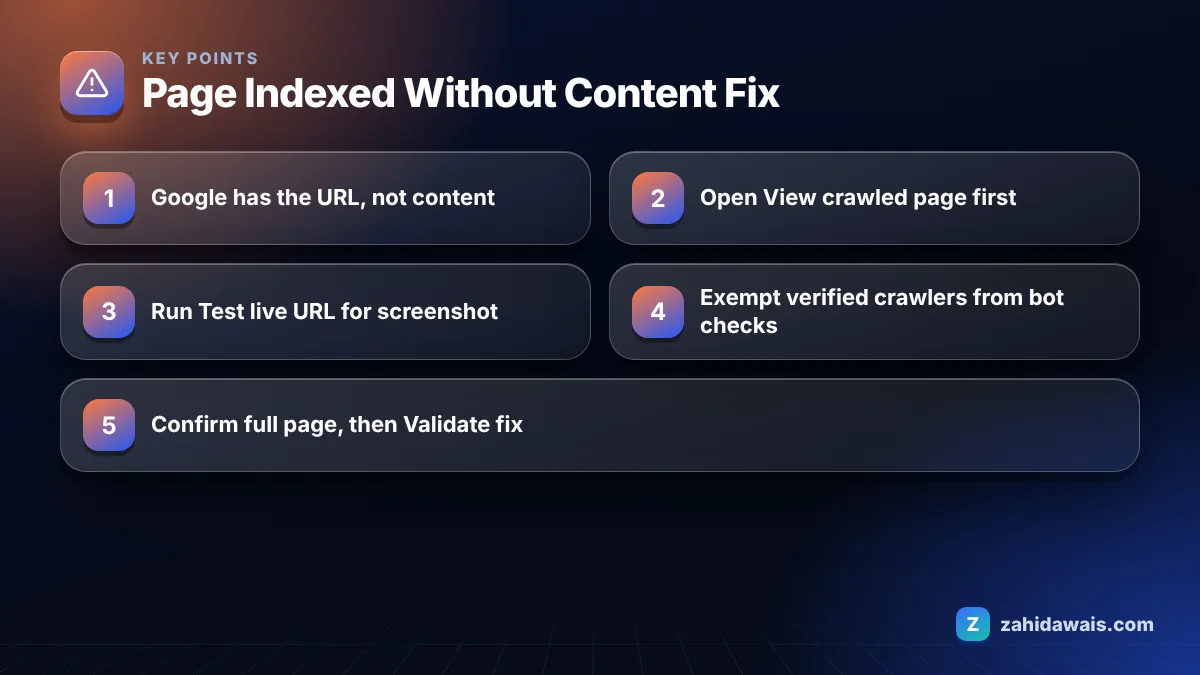
It means Google has the URL in its index but, for some reason, could not read the page content, and the problem is not a robots.txt block. That is the wording on Google’s Page indexing report help page, which lists it as a warning rather than a reason for non-indexing. The page suggests possible causes such as cloaking or a format Google cannot index, and tells you to inspect the page.
In plain terms, Google can show the URL but has little or nothing to rank it with. If it is a key page, that is close to not being indexed at all.
From the cases I have looked into, the causes fall into these groups:
Yes, a CDN such as Cloudflare can cause it when a security or bot feature serves Googlebot a challenge or an empty response instead of the real page. The URL stays indexed from earlier crawls or links, but the latest fetch has no usable content.
Check your CDN’s security event log for requests from Google’s crawlers around the dates the warning appeared. If you see challenges or blocks, exempt verified search engine crawlers from that rule rather than turning off protection. The same logic applies to hosting firewalls and WordPress security plugins.
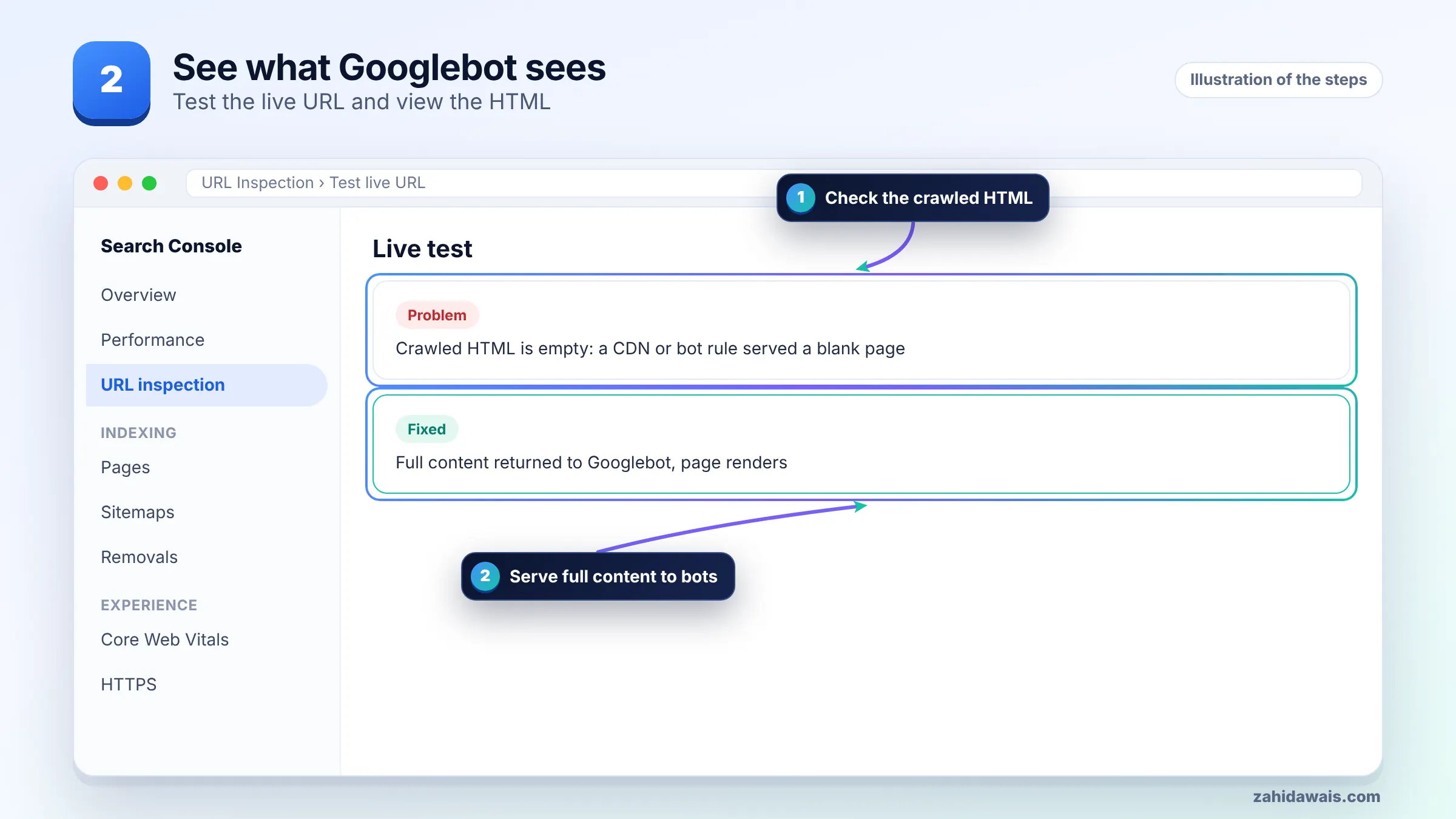
You check what Googlebot sees with the URL Inspection tool: View crawled page shows the HTML and HTTP response headers Google stored from its last crawl, and Test live URL shows what Google gets right now, including a screenshot. Compare both with what a browser shows.
| What you see | Likely cause | Where to look |
|---|---|---|
| Crawled HTML is empty or a few lines | CDN, firewall or server sent no body | CDN security log, server access log |
| HTML is a challenge or “checking your browser” page | Bot protection challenged Googlebot | Bot or WAF settings |
| HTML is fine but the screenshot is blank | JavaScript rendering failed | More info, page resources and console messages |
| HTML differs from the browser version | User agent based serving or caching | Plugins, server rules, cache settings |
| Live test is fine, crawled page was not | Temporary problem, already gone | Uptime history, then request indexing |
The live test is the only place you get a rendered screenshot, so always run it when you suspect a rendering problem.
You fix it by finding which layer stripped or changed the content for Googlebot, removing that cause, and confirming that a live test returns the full page. Work through these steps.
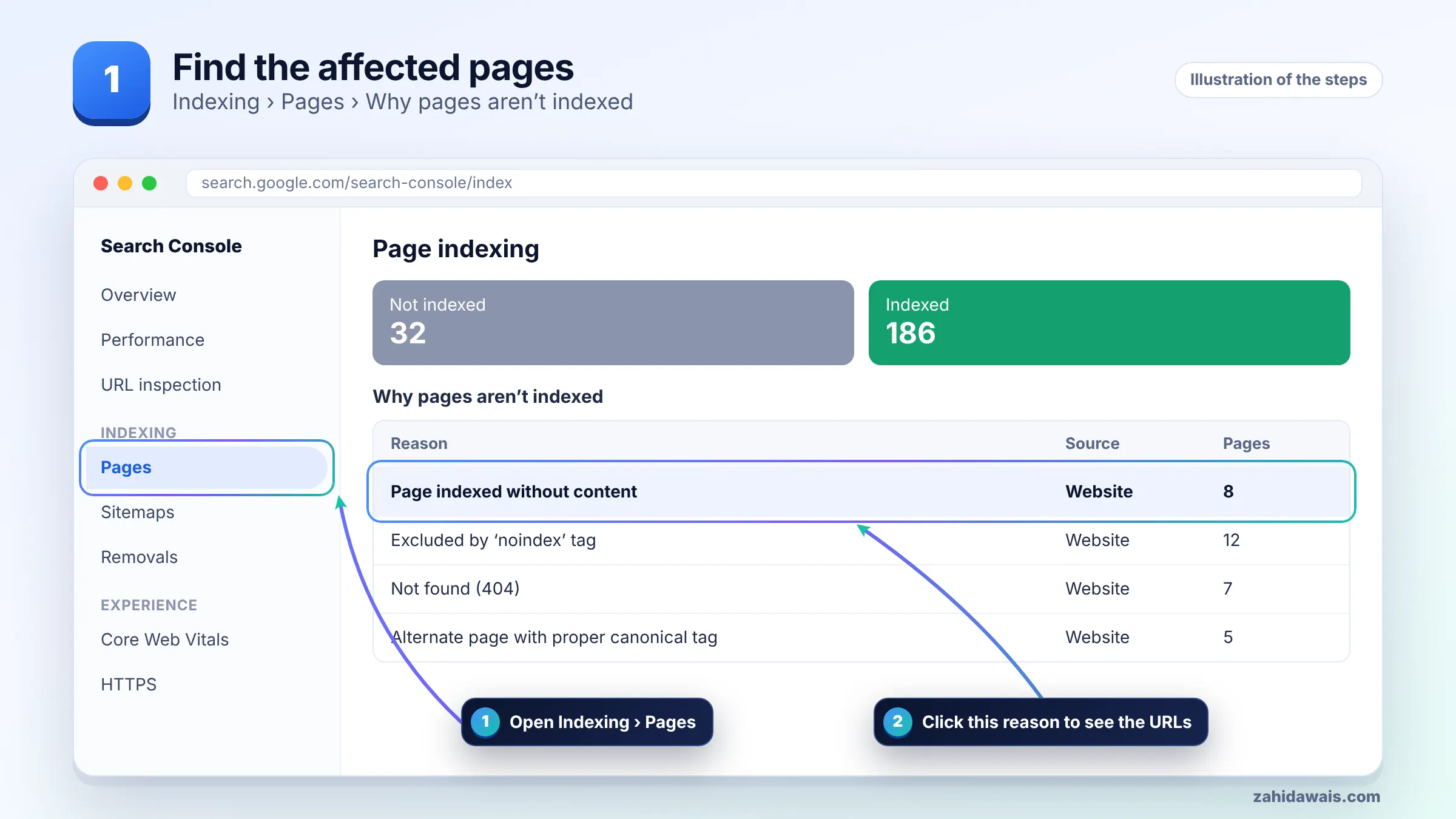
Rendering and CDN issues often overlap with crawl problems elsewhere on a site. The Search Console indexing errors guide covers the related statuses, and my robots.txt tester confirms whether scripts and API paths are crawlable.
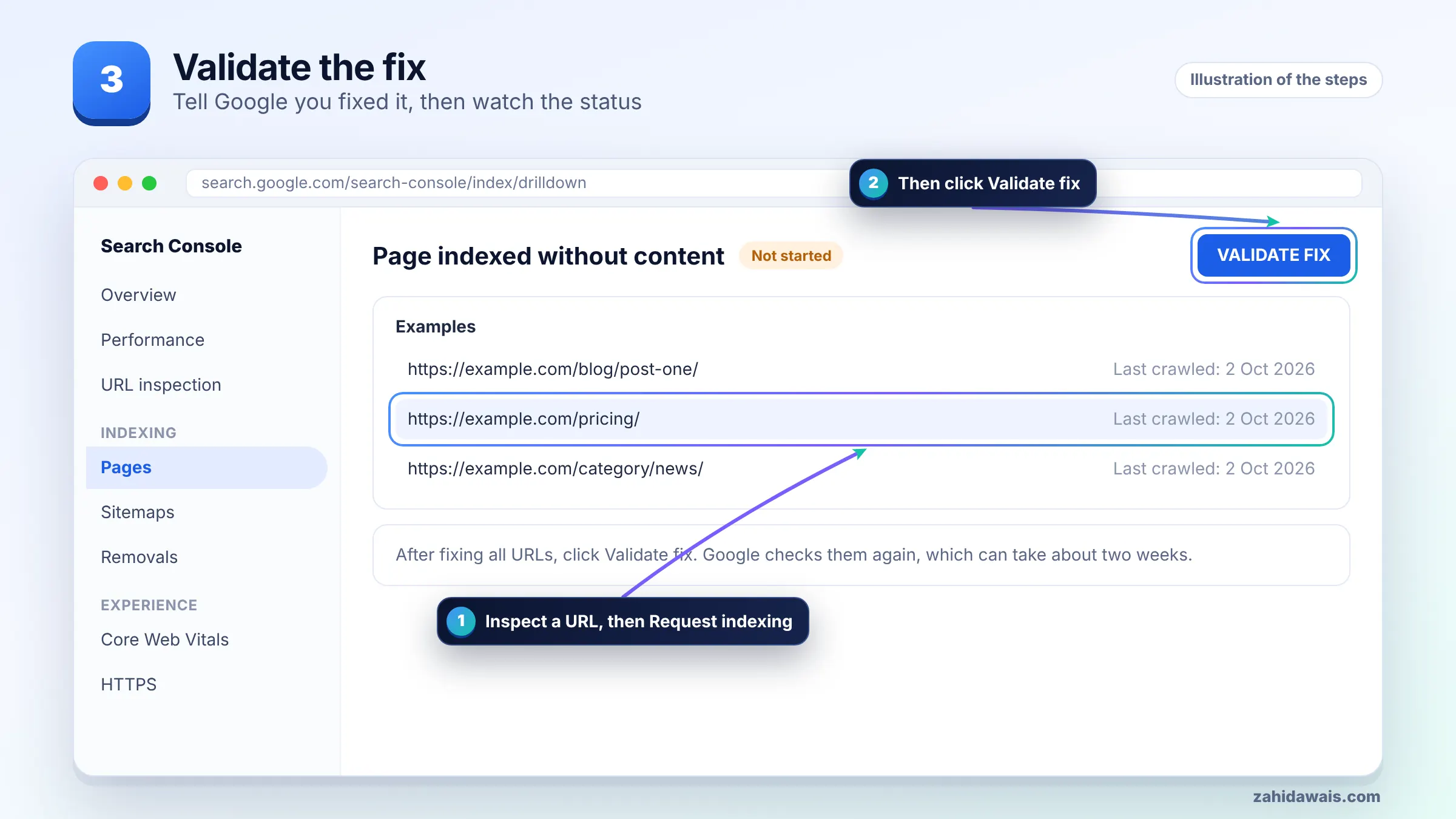
You validate by confirming a full page in the live test, then clicking Validate fix on the warning so Google rechecks the affected URLs. Do this only once every URL group you found has been fixed.
After validation passes, use View crawled page again on one URL a few weeks later to be sure Google’s stored copy now contains your content.
A typical case, described for illustration: a blog shows 25 posts with this warning. In a browser each post is around 1,500 words. In URL Inspection, View crawled page shows only about 20 lines of HTML: a head section and a script, no article text. The live test from Google shows the same short HTML and a blank screenshot.
The CDN security log shows these requests were served a JavaScript challenge, triggered by a bot setting that was switched on the week the warning appeared. After exempting verified crawlers, the live test shows the full 1,500 word post and a normal screenshot. Validation is started, and from the next recrawl onward Google stores the real article text instead of an empty shell, which is the whole point of the fix.
If you cannot find the layer responsible, a technical SEO audit that compares server logs with what Google stored is usually the quickest route.
It means the URL is in Google’s index, but Google could not read the page content on its crawl, and robots.txt is not the cause. Google lists it as a warning in the Page indexing report and suggests inspecting the page to see what it received.
It can be. Google has the URL but little or no content to understand or rank it, so the page is unlikely to perform. If the affected URLs are important pages, treat the warning as urgent and find out what Googlebot is receiving.
Yes. Security features that challenge or block bots can send Googlebot an empty page or a challenge page instead of your content. Check the security event log and exempt verified Google crawlers from the rule that triggered.
Inspect the URL in Search Console and open View crawled page. It shows the HTML and HTTP response headers from Google’s last crawl. For a rendered screenshot, run Test live URL, because the screenshot is only available in the live test.
No. Google states that this is not a case of robots.txt blocking. If robots.txt blocks a URL that is indexed anyway, Search Console shows the separate warning indexed, though blocked by robots.txt instead.
It can if your main content depends on scripts or API calls that Google cannot fetch or that fail during rendering. Check the live test for blocked resources and console errors, and consider rendering the main content on the server.
Facts checked against these official pages. Read how I check facts in my editorial policy.
Why Google can index a URL it is not allowed to crawl, and the two clean ways to resolve the warning depending on your goal.
Read article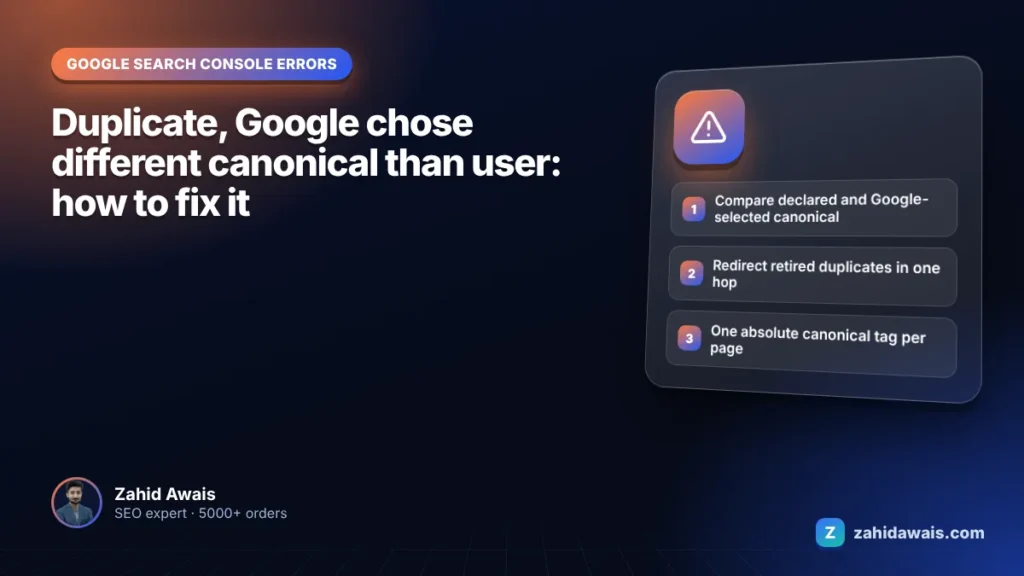
Why Google ignores the canonical you set, how to read its choice in URL Inspection, and how to line up every signal so it agrees.
Read article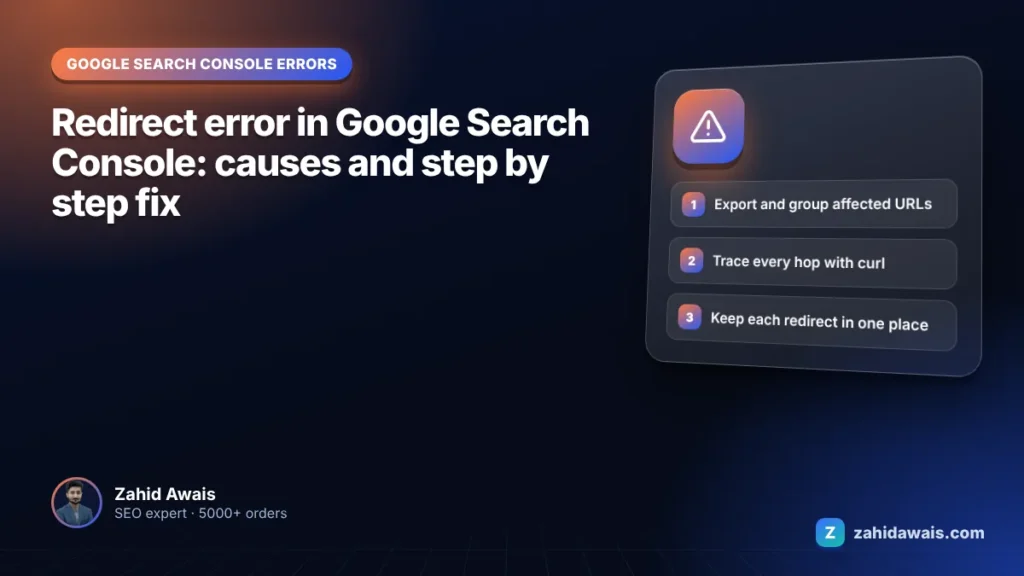
The four redirect problems Google reports, how to trace each one in minutes, and how to confirm the fix in Search Console.
Read articleSend your website and I will reply with a free audit.