Color Palette Generator
A color palette generator is a tool that turns one base color into a usable set of website colors. It…
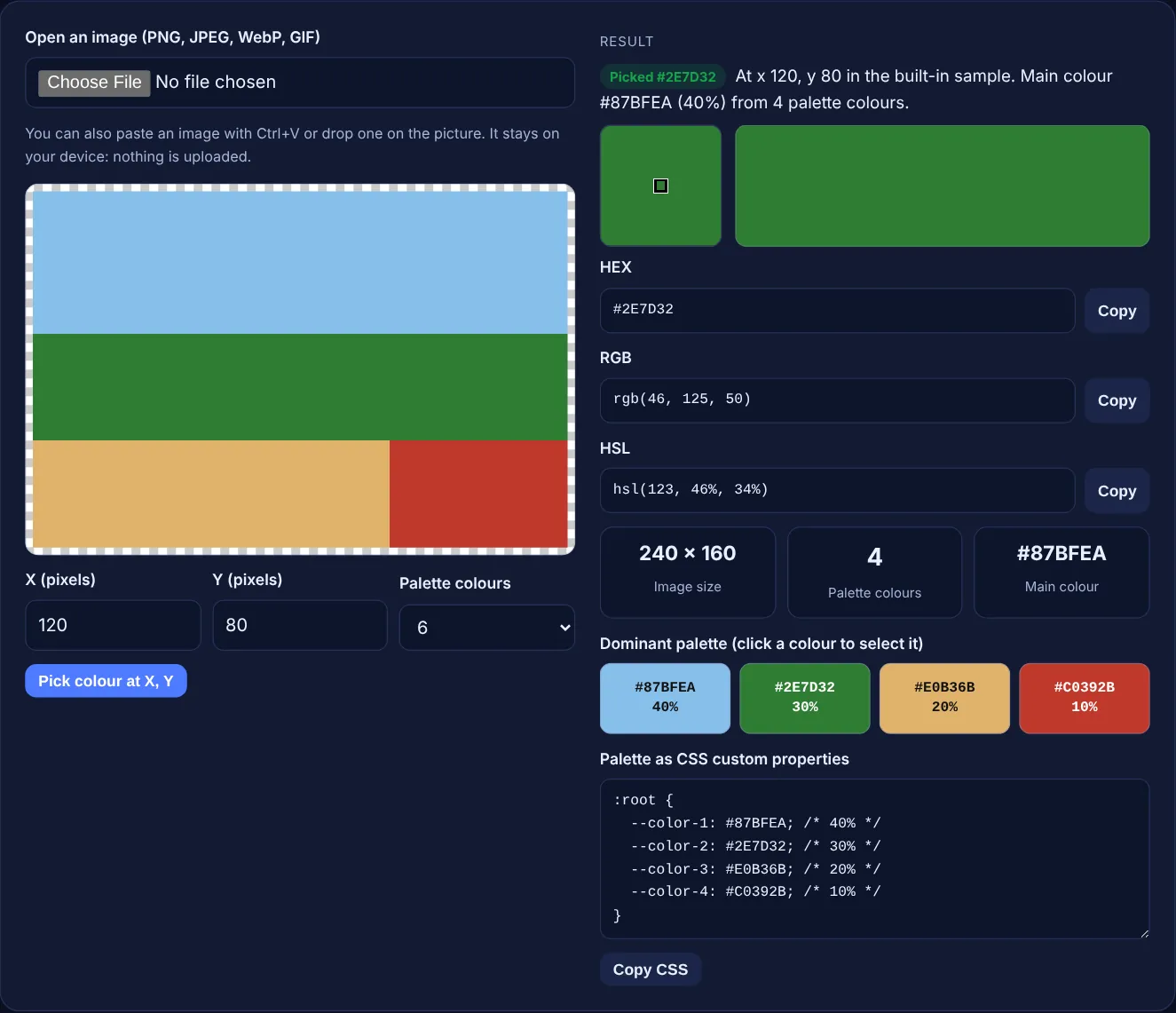
Open or paste an image, click any pixel to read its exact colour, and get the main palette of the picture as HEX codes.
You can also paste an image with Ctrl+V or drop one on the picture. It stays on your device: nothing is uploaded.
The free image color picker opens a photo, screenshot or logo in your browser, lets you click any pixel to read its exact HEX, RGB and HSL values, and pulls out the dominant colour palette of the whole image. The file never leaves your device.
An image color picker reads the colour of a single pixel from a picture and shows it as HEX, RGB and HSL codes you can paste into CSS or a design tool. This one also groups similar pixels with the median cut method to list the main colours of the image and the share of the picture each one covers.
An image color picker is a tool that tells you the exact colour of any point in a picture. You open an image, click a spot, and get the code for that colour: HEX for CSS and most design tools, RGB for the three red, green and blue values from 0 to 255, and HSL for hue, saturation and lightness, which is easier to adjust by hand.
The tool draws your image on an HTML canvas and reads the pixel with the Canvas API. MDN describes getImageData() as the method that "returns an ImageData object representing the underlying pixel data for a specified portion of the canvas". Because the file is read locally, not fetched from another site, the browser lets the page read every pixel and nothing is uploaded.
It uses median cut, a colour quantisation method that puts all pixels in one box of colour space and keeps splitting the box with the widest spread at its middle value until it has the number of colours you asked for. Each final box becomes one palette colour, the average of its pixels, and its share is the number of pixels in the box. Large images are sampled on a regular grid of up to about 40,000 pixels, and pixels that are mostly transparent are ignored, so a logo on a transparent background is not counted as black.
A photo is made of many slightly different pixels, so one click returns one exact pixel, which may be lighter or darker than the area looks overall. JPEG compression also changes colours near edges and in smooth gradients. Use the magnifier to aim at a flat area, or take the palette colour, which averages many similar pixels. The tool reads the colour after the browser has decoded the image, so an image with an embedded colour profile can give values that differ slightly from a desktop editor.
Yes, but check the contrast first. Colours taken from a photo or logo are often mid tones that are too light for text on white. MDN's color contrast guide gives the WCAG 1.4.3 rule: "Text and its background should have a contrast ratio of at least 4.5:1." Test each pair in the color contrast checker, and use the strongest brand colour for buttons in the CSS button generator, which checks every state.
| Format | Example | Best for |
|---|---|---|
| HEX | #2E7D32 | CSS, WordPress, Figma, Canva |
| RGB | rgb(46, 125, 50) | CSS, image editors, code |
| HSL | hsl(123, 46%, 34%) | Making lighter or darker shades by hand |
| CSS custom property | --color-1: #87BFEA; | Reusing a palette across a stylesheet |
Example: the built-in sample is a 240 × 160 image with a sky band, a green band, sand and a red block. Clicking the centre, x 120 and y 80, returns #2E7D32, which is rgb(46, 125, 50) and hsl(123, 46%, 34%). The dominant palette finds 4 colours: #87BFEA covering 40% of the image, #2E7D32 30%, #E0B36B 20% and #C0392B 10%, and the CSS box lists them as --color-1 to --color-4. A 4 × 2 PNG with 3 black, 3 white and 2 transparent pixels gives a palette of #000000 50% and #FFFFFF 50%, with 2 transparent pixels ignored.
No. The image is opened with the browser's file reader and drawn on a canvas on your device. Picking colours and building the palette happen in JavaScript on the page, so nothing is sent, stored or shared.
Yes. Take a screenshot, copy it to the clipboard and press Ctrl+V on this page, or Cmd+V on a Mac. The screenshot opens in the picker and you can click any pixel in it.
Not directly. A browser page cannot read pixels from images on other sites unless those sites allow it. Take a screenshot of the website instead and paste it here, which works for any page you can see.
They describe the same colour in two ways. RGB lists red, green and blue from 0 to 255, and HEX writes the same three numbers in base 16, so rgb(46, 125, 50) is #2E7D32. Both work in CSS.
Each palette colour is the average of a group of similar pixels, so it represents an area rather than one point. For a flat logo the average equals the real colour. For photos, use the picker on a pixel if you need an exact value.
For a website, three to five is usually enough: a main brand colour, an accent and neutrals for text and backgrounds. Start with six here, then drop colours that are too close to each other or too light for text.
Checked 23 Oct 2026. Facts checked against these official pages. Read how I check facts in my editorial policy.
A color palette generator is a tool that turns one base color into a usable set of website colors. It…
A hex to RGB converter is a tool that translates a CSS hex color code into its red, green and blue values.…
A color contrast checker is a tool that compares the relative luminance of two colors. The ratio is (L1 +…
Builds a CSS button with hover, focus and active states and a text contrast check.
Send your website and I will check it for you, free.
One short email when something new goes live: articles, free SEO tools, package updates, discounts and price alerts. No spam, unsubscribe in one click.