Technical SEO
How to Fix Cumulative Layout Shift (CLS) on WordPress
Find the elements that move on your WordPress pages and lock them in place so CLS stays under 0.1.
Read articleUse lazy loading to make pages lighter without hiding images and content from Google or slowing your main image.
This guide answers whether lazy loading helps or hurts your search performance and shows you how to set it up so Google still sees every image and block of content. The short answer to does lazy loading affect SEO is that it helps when done right and hurts in two specific cases: lazy loading the main above the fold image, and content that only loads after a scroll or click.
Does lazy loading affect SEO? Done correctly, it helps by cutting page weight, and Google can still find lazy loaded content that loads when it enters the viewport. It hurts when you lazy load above the fold images, which slows Largest Contentful Paint, or when content only appears after a user scrolls or clicks, which Googlebot does not do.
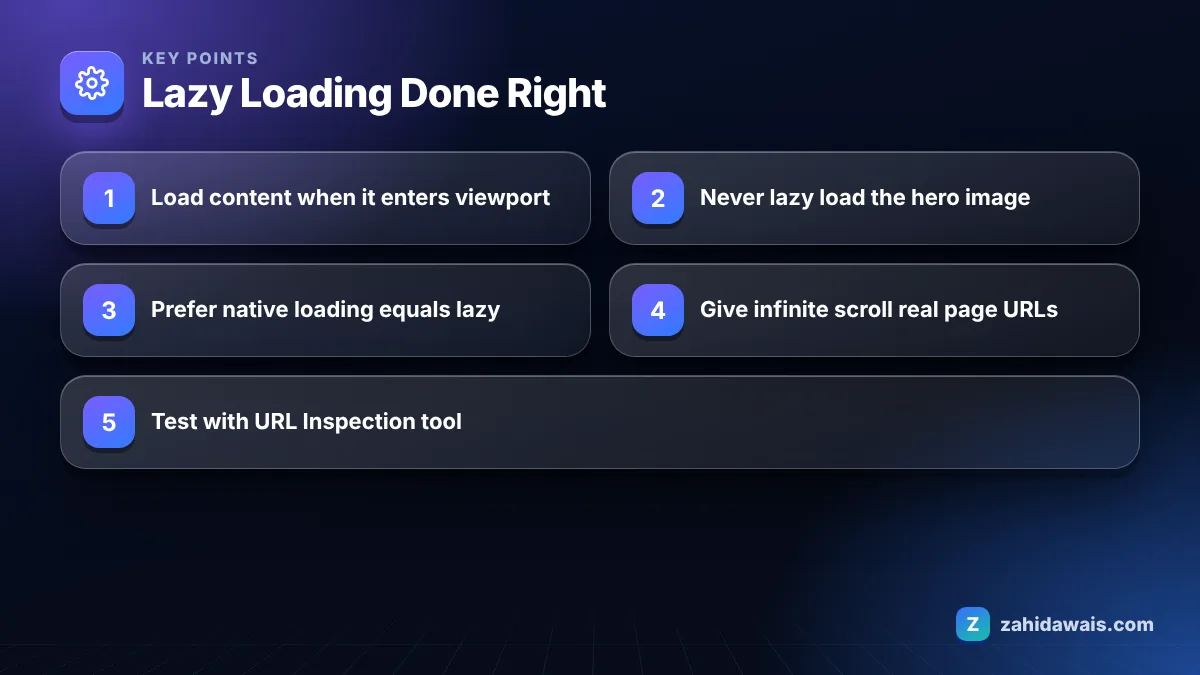
Yes, Google can crawl and index lazy loaded images as long as they load when they become visible in the viewport and their real URL ends up in the src attribute. Google’s guide to fixing lazy-loaded content says your implementation should load all relevant content whenever it is visible in the viewport.
The key detail is that Google Search does not interact with your page. It will not scroll, click a “load more” button or hover over a gallery. So lazy loading that waits for a scroll event can leave images and text invisible to Google, while lazy loading based on the viewport works.
Google lists three methods that work: the browser’s built in loading attribute for images and iframes, the IntersectionObserver API, and a JavaScript library that loads content when it enters the viewport. Old scripts that listen for scroll events, or that keep the real image URL in a data-src attribute that is never swapped in for crawlers, are where problems start.
No, you should not lazy load images that are visible when the page first loads, especially the hero or featured image that is usually the Largest Contentful Paint element. Lazy loading tells the browser to wait, and for the most important image on the page, waiting is the opposite of what you want.
web.dev measured this in its study on the performance effects of too much lazy loading. Across HTTP Archive data, the median 75th percentile LCP was 2,922 ms for pages without lazy loading and 3,546 ms for pages with it. On WordPress archive pages, skipping lazy loading for above the fold images improved LCP by 13% on desktop and 15% on mobile in their test, while keeping most of the data savings.
In practice: leave loading=”lazy” off the logo, the hero, the first featured image and the first one or two product images in a grid. Everything further down can be lazy.
Remember that the fold moves. An image that sits below the first screen on a desktop may be the first thing a phone shows, and the reverse is also true. Check your key templates on a phone sized screen before deciding which images to exclude, and when in doubt, load the first image in the main content normally.
For most sites, native lazy loading with the loading=”lazy” attribute is the better choice because it needs no script, the browser decides when to fetch based on distance from the viewport, and Google can see the real image URL in the HTML straight away. JavaScript lazy loading still has a place for background images and complex components.
According to web.dev’s guide to browser-level image lazy loading, the loading attribute is supported for images in Chrome 77, Edge 79, Firefox 75 and Safari 15.4, and for iframes in all of them too. Chrome starts fetching lazy images 1,250 pixels before they reach the viewport on fast connections and 2,500 pixels on 3G or slower, so most visitors never see a blank space.
| Approach | Google sees the image URL? | SEO risk | Best for |
|---|---|---|---|
| Native loading=”lazy” | Yes, in the src attribute | Low, unless used on the hero image | Content images and iframes below the fold |
| IntersectionObserver script | Yes, after rendering, if src is swapped in | Low to medium; depends on the script | Background images, custom components |
| Scroll event script | Often no | High; Googlebot does not scroll | Nothing; replace it |
| Click to load or “load more” | No, unless also linked | High for content behind it | Use paginated URLs as well |
| No lazy loading | Yes | None for crawling, slower pages | Above the fold images |
WordPress has added loading=”lazy” to images by default for years and now skips it for images it expects near the top of the page. Many themes and performance plugins add their own JavaScript lazy loading on top, which can double up. Pick one system, and prefer native.
For infinite scroll and load more buttons, give every chunk of content its own URL that Google can reach through normal links, because Googlebot will not scroll or press buttons to see more. Google recommends persistent URLs such as ?page=2 with the same content on every load, linked in sequence, and updating the browser URL with the History API as each new chunk becomes the main content.
This matters most on blog archives and ecommerce categories. If page 2 of a category only exists as a JavaScript load, products listed there may only be found through other paths, like your sitemap. For more on how images and other media get found and shown in search, see my guide to content and media SEO.
A WooCommerce category page lists 24 products, with 12 visible on a phone’s first screen, and a load more button for the rest. The audit finds three issues. The hero banner has loading=”lazy”, which delays LCP. A plugin replaces every product image src with a placeholder and stores the real URL in data-src, swapped in on scroll. And products 25 to 60 only appear after clicking load more. The fixes: remove lazy loading from the hero and the first four product images, switch the plugin off and rely on native loading=”lazy” for the rest, and add plain paginated links (?page=2, ?page=3) under the button so each set of products has a crawlable URL. A URL Inspection test then shows all 24 real image URLs in the rendered HTML.
You test it with the URL Inspection tool in Search Console: run a live test, view the rendered HTML and confirm your images’ real URLs appear in their src attributes and that all text content is present. Do this for one page of each template.
Lazy loading checks are part of my free SEO audit checklist. If you want a full review of how your templates load images and content, my technical SEO service covers rendering, lazy loading and Core Web Vitals together.
No. Google says Google Search does not interact with your page, so it will not scroll or click. Lazy loading must trigger when content enters the viewport, not on scroll events or clicks, or Google may never see that content.
No. Native loading=lazy is safe for SEO because the real image URL stays in the src attribute. The only problem is using it on images visible when the page loads, especially the main hero image, which slows Largest Contentful Paint.
Yes, for embeds below the fold. The loading attribute works on iframes in all major browsers, and it can save a lot of data because video players load heavy scripts. Keep embeds near the top of the page loading normally.
They can, as long as Google finds the real image URL in the rendered HTML. Check with the URL Inspection tool. Images whose URLs only appear after a scroll or click may not be discovered.
It can improve load speed and data use for pages with many images below the fold. It does not help, and can hurt, Largest Contentful Paint if applied to the LCP image. Give lazy images width and height to avoid layout shift.
Usually not for images. WordPress already adds native lazy loading and skips it for images it expects at the top of the page. A second plugin often adds JavaScript lazy loading on top, which can cause conflicts. Use one method only.
Facts checked against these official pages. Read how I check facts in my editorial policy.
Find the elements that move on your WordPress pages and lock them in place so CLS stays under 0.1.
Read article
Know when to merge duplicates with a canonical, when to remove a page with noindex, and why mixing them backfires.
Read article
Find the slow part of your Largest Contentful Paint and apply the fix that actually moves it below 2.5 seconds.
Read articleSend your website and I will reply with a free audit.